Site members and roles
Access is granted per site, not per account. Inviting someone to one site tells them nothing about the others you own, and it does not give them a seat on your billing.
Two roles can be handed out. An Admin manages the site alongside you. A Member reads the analytics and changes nothing. The second column in the table below is you, the owner.
Roles
| Owner | Admin | Member | |
|---|---|---|---|
| Dashboard, reports, filters, realtime | yes | yes | yes |
| Goals and funnels: see the numbers | yes | yes | yes |
| Site settings, tracking code, blocklists | yes | yes | no |
| Create and edit goals and funnels | yes | yes | no |
| Public dashboard toggle, widgets, GA4 import | yes | yes | no |
| Rename the site, change its timezone | yes | yes | no |
| Invite and remove Members | yes | yes | no |
| Invite, re-role or remove an Admin | yes | no | no |
| Delete the site | yes | no | no |
The owner is the account that created the site. There is no way to hand ownership to someone else from the dashboard, so a transfer is a support request.
The line an admin cannot cross is other admins. An admin may invite, re-role and remove Members, and the invite dialog offers them no role to choose. Anything touching an admin row is the owner's alone.
A Member who opens a settings URL directly is returned to the dashboard.
Invite someone
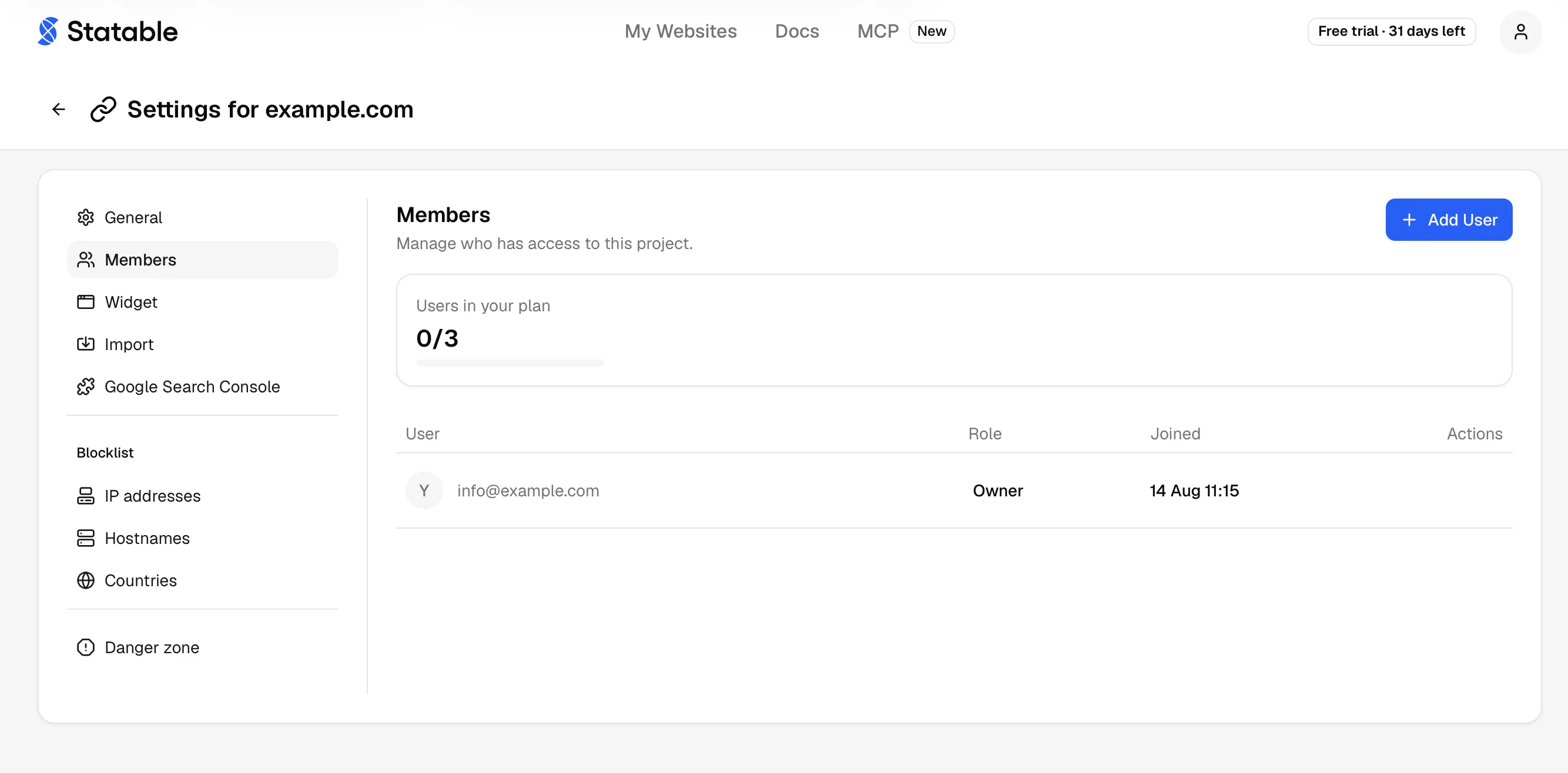
- Open Site settings → Members.
- Click Add member.
- Enter their email address and pick a role.
- Click Send invite.
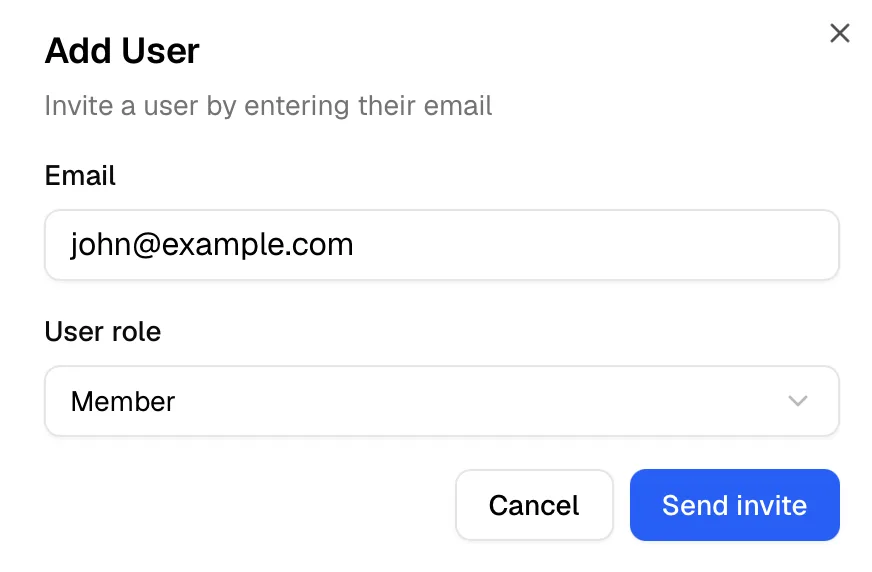
They get an email with a link that works for 7 days. The row appears in the table straight away with Pending in the Joined column, and it holds a seat from that moment.
The address is what the invite is addressed to. It does not matter whether that person already has a Statable account: if they do, they sign in and accept, and if they do not, they create one on the way through.
Seats
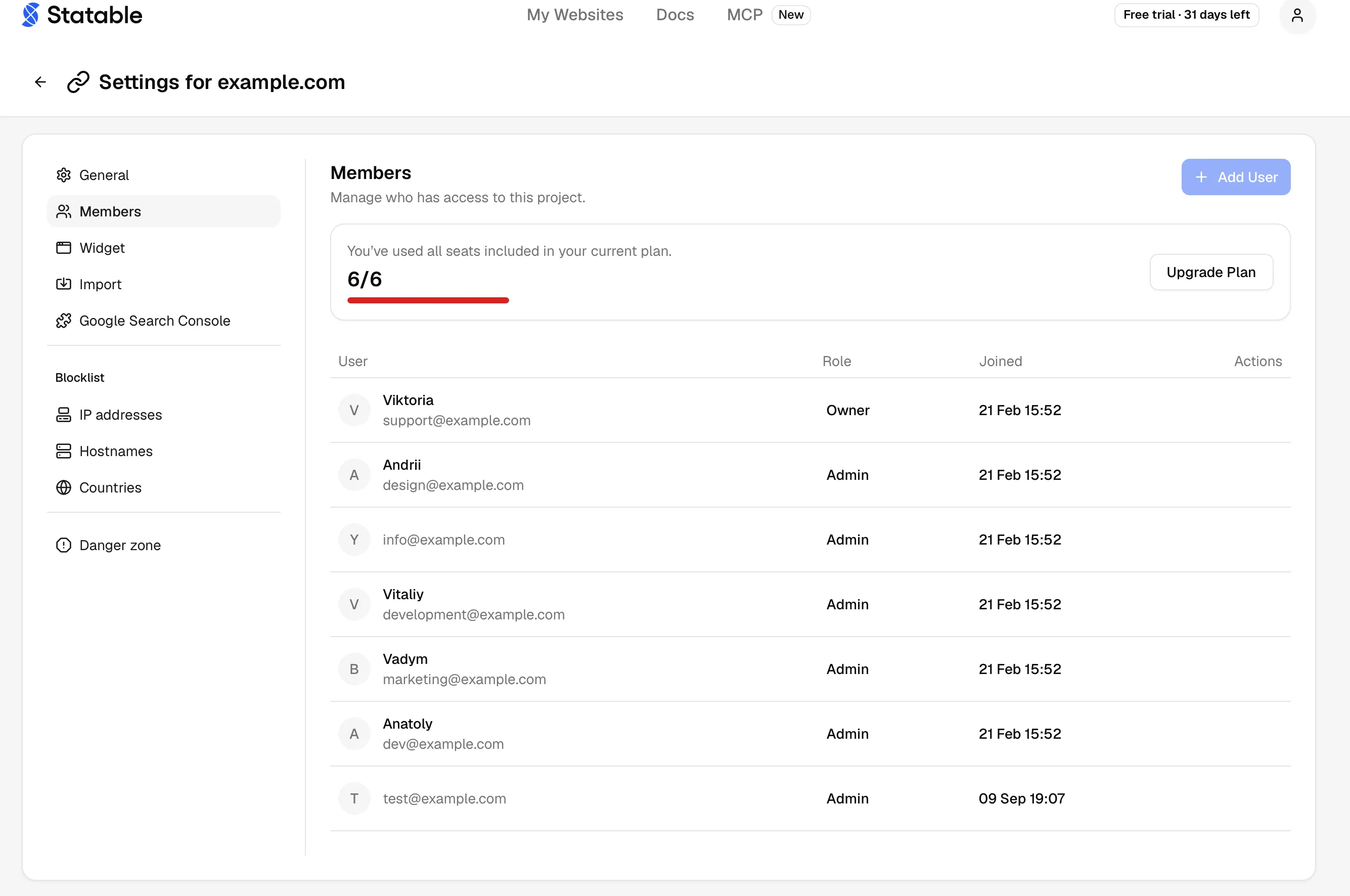
Above the table, Site members in your plan shows how many seats are taken out of how many the plan allows. Active members and pending invites both count. The owner does not.
When every seat is taken, the card reads You’ve used all seats included in your current plan. and shows Request More Seats. The button opens the Contact Support form with Account & access already chosen.
The allowance follows the site owner's plan, not the plan of whoever is looking. An admin managing someone else's site sees that owner's number and cannot raise it.
During a trial you get the smallest paid plan's allowance, so the feature is usable before you pay, and an upgrade never takes seats away.
Hobby sites have no seats
A site on the free hobby plan cannot have members, and that holds even when the owner pays for other sites. The seat meter is hidden on such a site and an invite is refused.
Cancel invites you no longer expect. An invite that has expired still occupies its seat until somebody cancels the row.
Change a role
In the Role column, pick the new role from the dropdown. It applies at once, and the person sees the change on their next request.
A pending invite can be re-roled too, and the new role is what takes effect when they accept. The email they already have still says the old one, so tell them if it matters.
Only the owner sees this dropdown on an admin's row.
Remove someone
Open the actions menu at the end of the row and choose Delete. Type DELETE in the dialog to confirm. Note the capitals: this is the one confirmation phrase in Statable that is not lowercase.
Access ends on their next request. Their own account, their other sites and anything they created here all stay as they are; goals and funnels an admin set up belong to the site, not to them.
An admin can remove Members. Removing an admin is the owner's job.
Pending invites
The actions menu on a pending row offers two things:
- Resend invite mails the link again. It also issues a new link and restarts the 7 days, so the old one stops working. You can resend once a minute.
- Cancel invite deletes the row and frees the seat. The link stops working immediately.
An invite that has expired is not removed on its own. It keeps showing as Pending, and resending it is what brings it back to life.
Accepting an invite
The link opens a page naming the site, who invited them and which role they were given. From there they sign in if they need to, then accept and land on the site's dashboard.
Someone without an account can sign up from the same page. Once they are in, they come back to the invitation, not to an empty sites list.
The account they sign in with has to be the address the invite was sent to. Signing in as somebody else shows a notice saying which address to use, and accepting is refused until they do. Address capitalisation does not matter.
A link that has expired, been cancelled or already been used says so instead of failing quietly.
Sites shared with you
A site somebody shared with you sits in your sites list with a Shared badge, and hovering it says which role you hold. It opens like any other site.
Your own subscription does not gate it. If your trial runs out, sites you own lock and sites shared with you keep working, because the owner is the one paying for them.
If every site in your list is shared with you, the account has no plan of its own. There is no trial badge or usage meter, and Plan & Billing offers Add your first website instead.
To give up access yourself, open the ⋯ menu on the site's row in your sites list and choose Leave website. The dialog names the site; confirm, and you lose access while the site and its data stay with the owner, who can invite you again. The menu works even on a site whose dashboard is locked. An admin also finds Leave website in Site settings → Danger zone, where an owner sees Delete website. A Member cannot open Site settings.
Limits worth knowing
- Access is per site. Somebody who should see five of your sites needs five invitations.
- There are no groups or teams to manage. Membership is a list of people on one site.
- Members are managed in the dashboard only. Neither the Stats API nor the MCP server can invite anyone or change a role. What they do respect is the role you already hold: see Managing sites.
- An API key never exceeds the access of the account that made it. A Member's key reads the sites they can read, cannot write to them, and cannot read their blocklists.
- Ownership does not move. Contact support if a site has to change hands.
Ready to take control of your web analytics? Try Statable free for 30 days. No credit card required, full feature access, built for GDPR. Start your free trial or view a live demo.