Blocklist: IPs, hostnames, and countries
Block specific IP addresses, hostnames, or countries from showing up in your stats. Matched events stop at the ingest endpoint before storage, so they don't enter your reports, count toward usage, or trigger goals. Rules live in your account, not in the tracking script, so you can edit them anytime without touching your site.
Manage rules under Site settings → Blocklist.
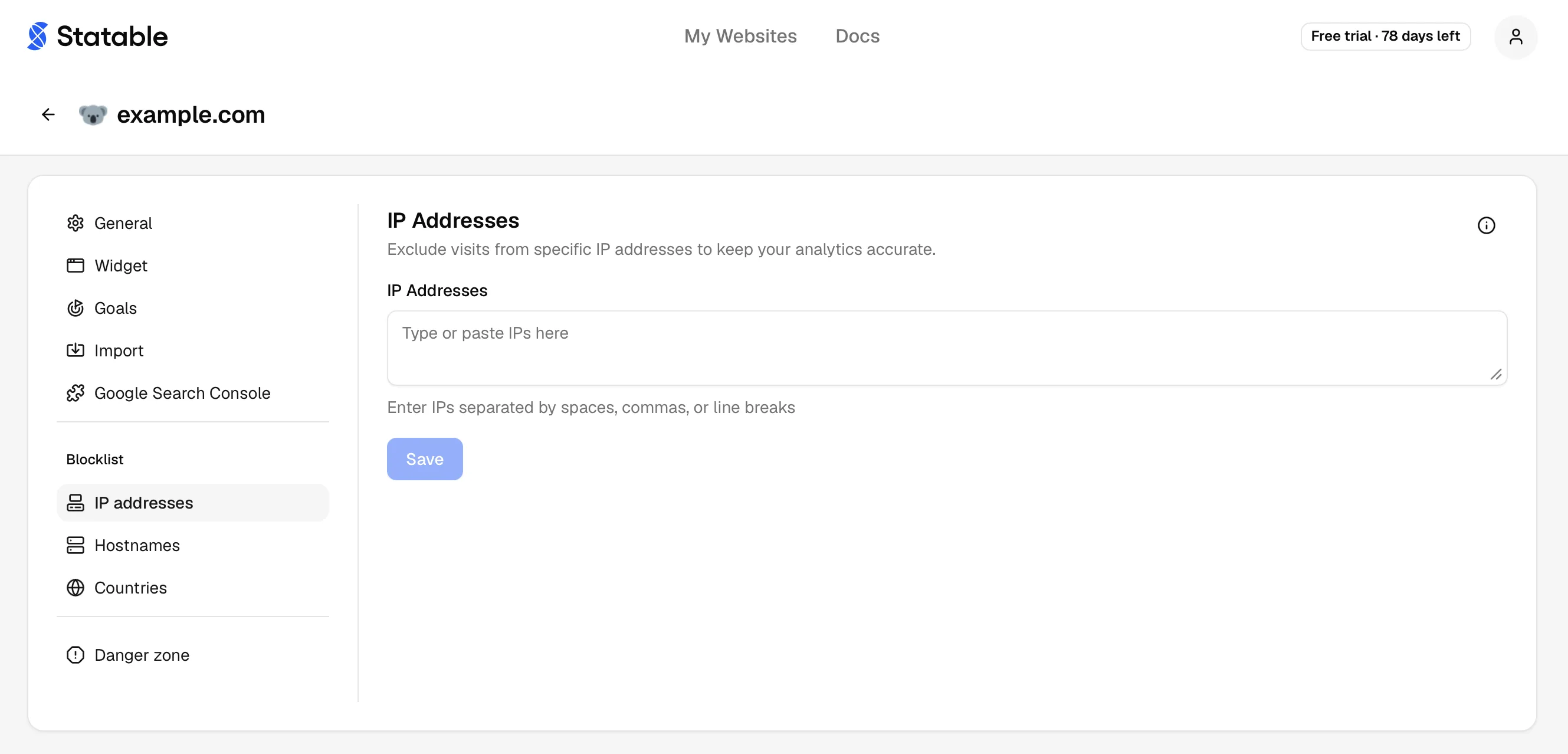
IP blocklist
Every time you open your own site, that visit gets counted. If you check your site five times a day, that's 150 fake visits a month skewing your stats. The IP blocklist filters out visits from specific IP addresses so they never reach your reports.
When to use it
- Exclude yourself or your team from production stats.
- Skip noise during QA, after a deploy, or while debugging.
- Drop synthetic monitoring (Pingdom, UptimeRobot, etc.) by their fixed IPs.
- Quiet in-house bots without touching
robots.txt.
How to add an IP
- Open Site settings → Blocklist → IP addresses.
- Paste one IP per line in the IP blocklist field.
- Save.
Each line is an address or a network in CIDR notation, IPv4 or IPv6. A network covers every address in it, which matters for IPv6: a device's address changes daily, but its /64 stays the same. A network can be no wider than /16 for IPv4 or /32 for IPv6. Blank lines and extra whitespace are ignored. Any other line that isn't an address or a network stops the save, and the list stays as it was. Blocking a network rather than single addresses is how we handled a Singapore bot spike that came from one rented range.
Finding your IP
Search "what is my IP" or open api.ipify.org. Copy the address shown, paste it into the blocklist, save.
Limitations
- IPs change. Mobile networks, residential ISPs, and VPNs rotate addresses. Best for static office or server IPs.
- Per-site. Three sites means three separate blocklists.
- No retroactive cleanup. Blocking an IP filters new visits only. Old visits stay in your reports.
For an alternative that works on dynamic IPs, exclude yourself in your own browser with the opt-out flag.
Opt out yourself without an IP
If your IP changes often (mobile, home Wi-Fi), set a flag in your browser instead. Open the browser console on any page and run:
The tracker reads this flag on every pageview and skips reporting. Per-browser, per-device, no IP needed.
The script also respects Do Not Track and Global Privacy Control automatically. If your browser sends either signal, no flag is needed — you're already excluded. See Privacy & data collection for the full list of signals the script honors.
Hostname blocklist and allowlist
Useful when the same tracking snippet runs on multiple hostnames (production, staging, preview, customer subdomains) and you want to control which ones get tracked.
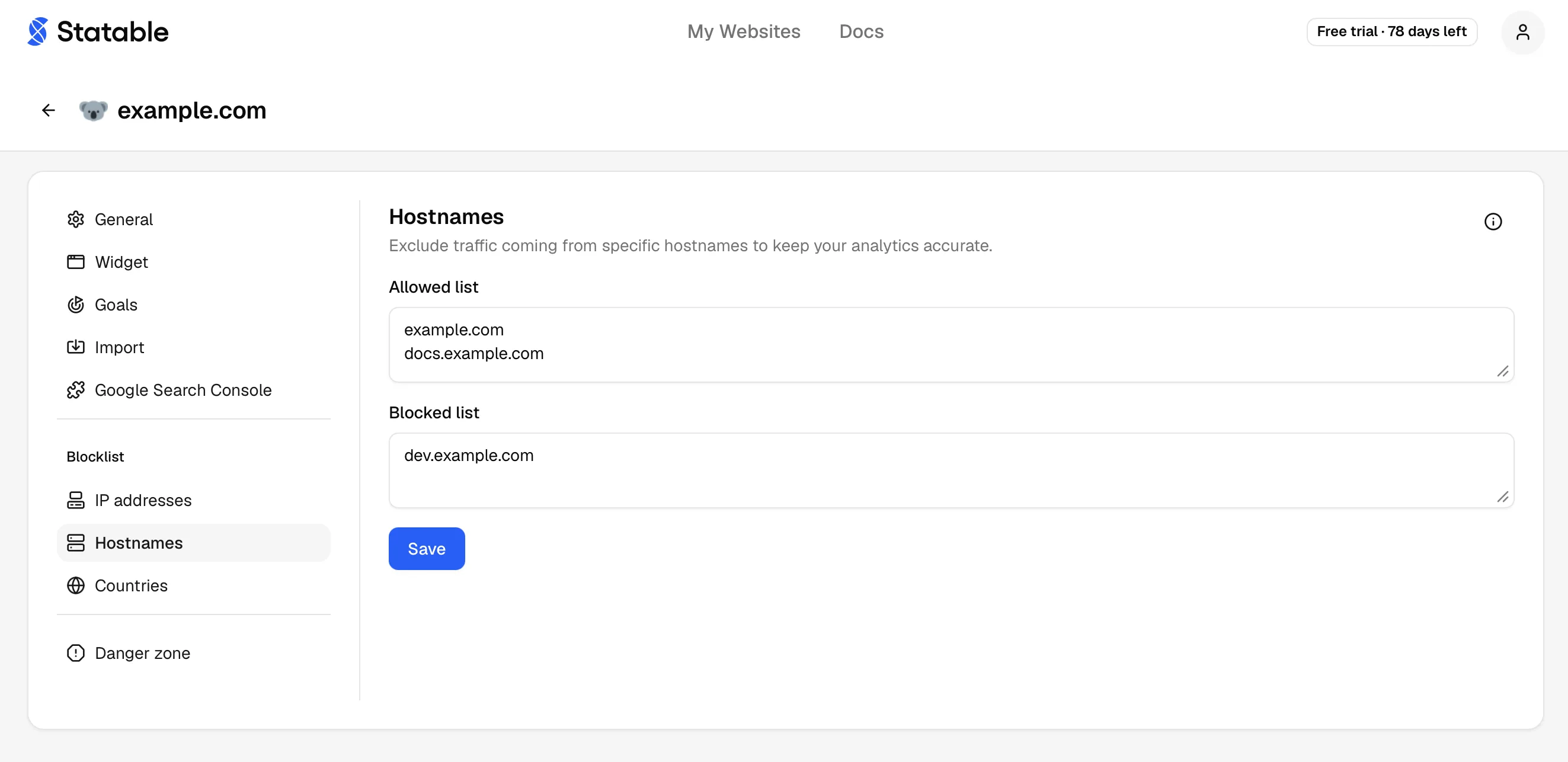
Both lists live under Site settings → Blocklist → Hostnames, side by side.
Allowlist
Lists the hostnames you do want to track. Other hostnames sending the same data-id are dropped.
- Empty allowlist: every hostname is accepted (default).
- Non-empty allowlist: only listed hostnames are tracked, everything else is dropped.
A listed hostname also covers its subdomains. example.com alone accepts www.example.com, app.example.com and every other subdomain, so list a subdomain on its own only when that subdomain is all you want tracked. Anything outside the list, such as a copy of your site on another domain, is dropped.
Blocklist
Always blocks, regardless of allowlist state.
Typical case: the same script runs on production and a Vercel or Netlify preview deploy. Adding preview hostnames keeps preview traffic out of your production reports.
If a hostname appears in both lists, the blocklist wins.
How they interact
| Allowed list | Blocked list | Behavior |
|---|---|---|
| Empty | Empty | Track every hostname (default). |
| Empty | Has entries | Track everything except blocked. |
| Has entries | Empty | Track only allowed entries. |
| Has entries | Has entries | Track allowed minus blocked. |
Each line is saved as a bare hostname: paste https://example.com/ and example.com is stored. Wildcards such as *.example.com are refused, because a listed hostname already covers its subdomains. A line that still isn't a hostname stops the save.
Statable won't save a list that would block your site's own domain while that domain is still getting visits. You'll see an error that names the domain. To fix it, add the domain to the allowlist or remove the entry that blocks it.
Country blocklist
Block visits from specific countries so they never reach your reports. Like the IP and hostname lists, matched events stop at ingest before storage, so they don't count toward usage or trigger goals.
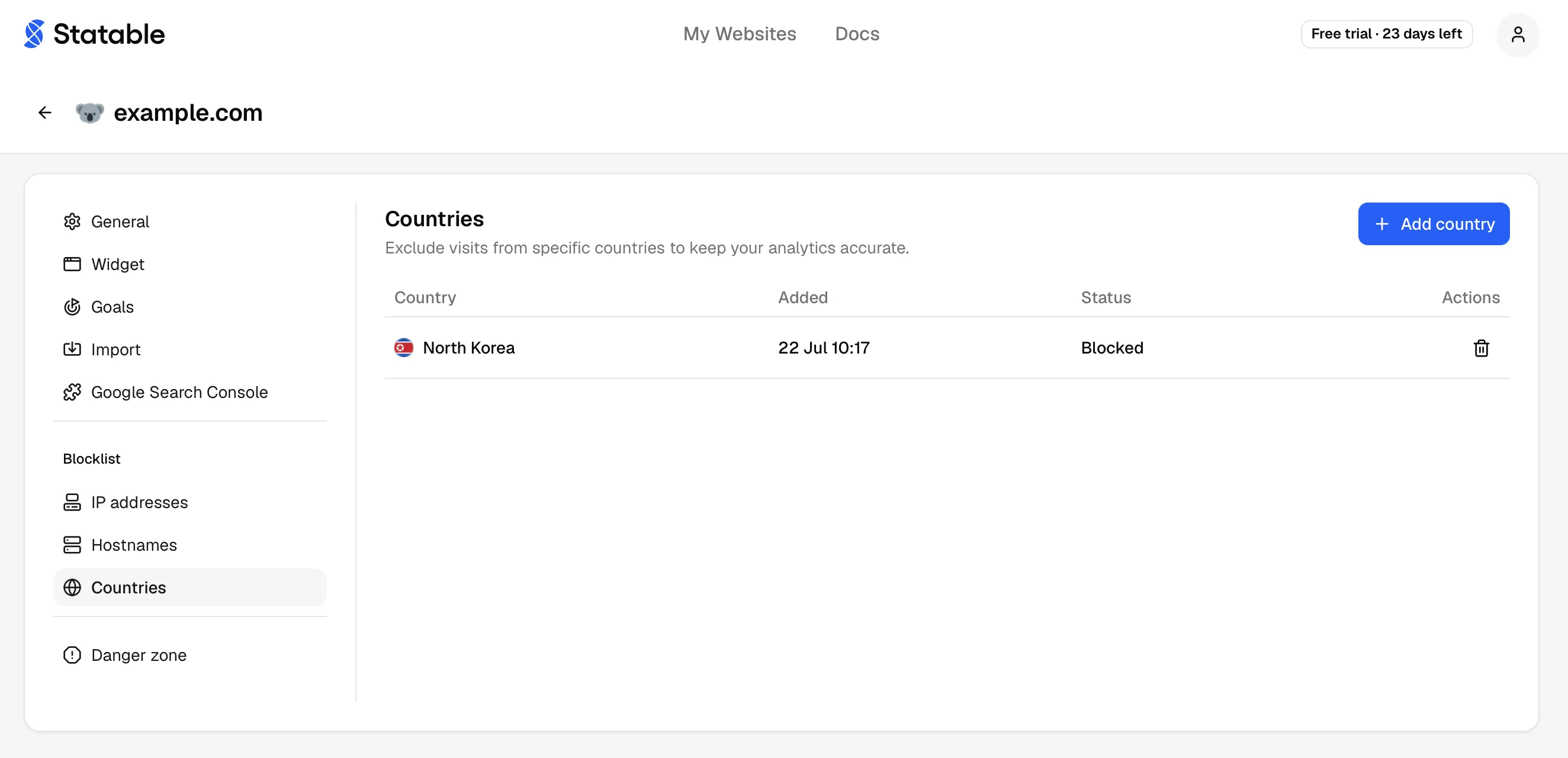
Manage the list under Site settings → Blocklist → Countries.
When to use it
- Drop traffic from regions you don't serve or ship to.
- Cut bot-heavy country noise that inflates your totals.
- Keep a specific market's test traffic out of production stats.
How to block a country
- Open Site settings → Blocklist → Countries.
- Click Add country and pick one from the list.
- It appears in the table right away, marked Blocked.
Add as many countries as you need. Remove one with the row's delete action, and it starts counting again on the next visit.
How matching works
- Country comes from the visitor's IP address, resolved against a local IP-geolocation database.
- Visitors whose country can't be resolved are never blocked, so real traffic is never dropped by mistake.
- Per-site. Each site keeps its own country list.
- Forward-only. Blocking a country hides new visits, not ones already in your reports.
Where filtering happens
Filtering runs on Statable's servers, before the event reaches storage. The browser still sends the request. Practical implications:
- Your network and devtools still see the outbound call to
statable.com. - Edits take effect on the next event. No deploy, no propagation delay.
- Blocking is forward-only. To wipe historical events from a specific IP, hostname, or country, contact support.
What blocking is not
- Not a privacy or consent tool. See data collection and privacy compliance.
- Not a way to stop traffic. Visitors still load your page.
- Not a firewall. Real bad actors won't be deterred by a Statable rule.
Ready to take control of your web analytics? Try Statable free for 30 days. No credit card required, full feature access, built for GDPR. Start your free trial or view a live demo.