Date ranges & Compare
The date range picker drives every number on the dashboard. Pick a preset, switch to a custom range when you need exact dates, and toggle Compare mode (C) to see this period next to the previous one.
This page covers the picker, shortcuts, and comparison rules.


Presets
Click the date label in the top nav to open the picker. Every preset has a single-letter shortcut:
| Preset | Window | Shortcut |
|---|---|---|
| Realtime | Last 30 minutes (minute-level) | R |
| Today | 00:00 to now in site timezone | T |
| Yesterday | Full previous day | E |
| Last 7 days | Rolling 7-day window | W |
| Last 30 Days | Rolling 30-day window | M |
| Last 90 Days | Rolling 90-day window | Q |
| Month to Date | 1st of current month → today | D |
| Last Month | Full previous calendar month | P |
| Year to Date | 1 Jan → today | Y |
| Last 12 Months | Rolling 12-month window | L |
| All Time | From first event to now | A |
| Custom Range | Any two dates | U |
Presets evaluate in your site's configured timezone, not the viewer's local time. That keeps numbers consistent for distributed teams.
Custom range
Press U (or pick Custom Range) to open the calendar picker. On desktop you see two months at once. On mobile it opens as a full-screen drawer with one month visible. Click a start date, then an end date. The window is inclusive on both sides, so 1 Apr → 7 Apr is seven full days.
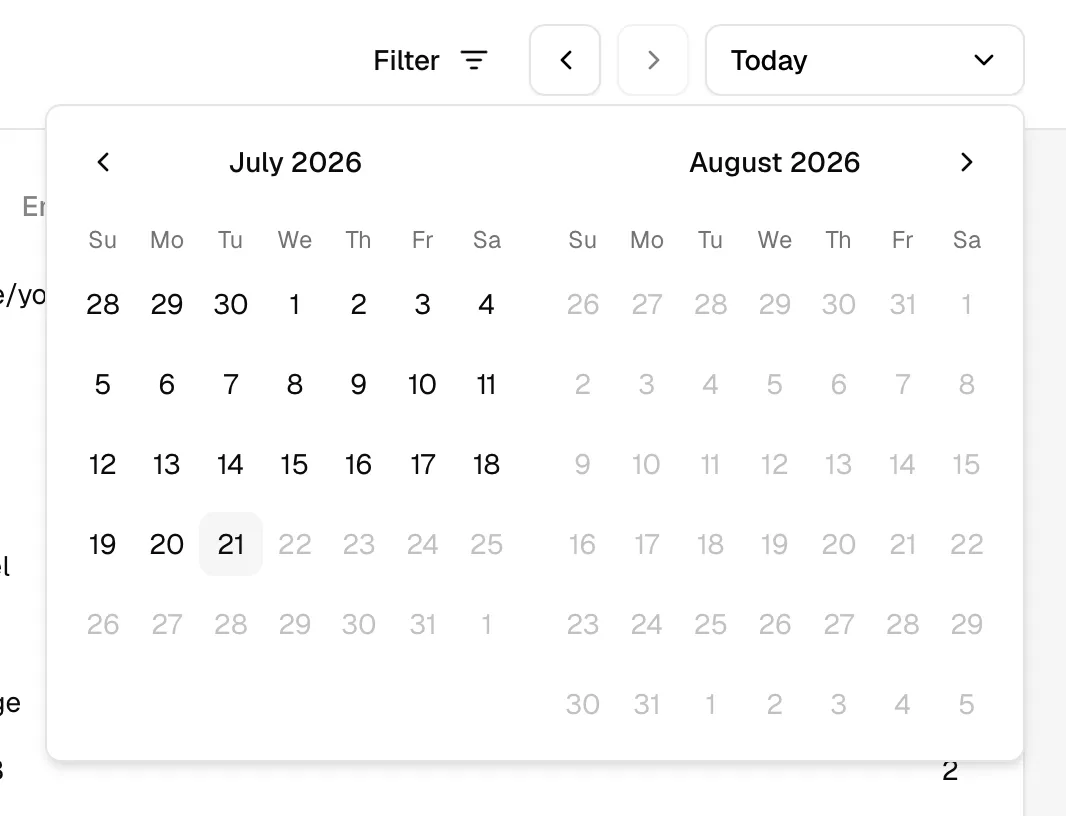
Custom ranges use the same timeframe auto-resolution as presets: a few days plot daily, longer ranges switch to weekly or monthly.
Pagination buttons
The ‹ and › buttons step through periods of the same length, but only for calendar-anchored windows:
- Today: step one day at a time
- Month to Date / Last Month: step one calendar month at a time
- Year to Date: step one year at a time
Rolling windows (Last 7 / 30 / 90 days, Last 12 Months) don't show pagination. There's no natural anchor to step against. Use Custom Range for arbitrary historical windows.
Compare mode
Press C (or click the Compare toggle) to overlay the previous period on the chart and add side-by-side columns to most reports. Errors, Goals and funnels show no comparison.

KPI trend percentages already use this comparison. Turning it on plots it.

Compare works where "previous period" is unambiguous:
- Today
- Yesterday
- Last 7 days
- Last 30 Days
- Last 90 Days
- Month to Date
- Last Month
- Year to Date
- Last 12 Months
Realtime, Custom Range, and All Time don't support Compare. There's no symmetric prior window to align against, so the toggle hides.
In Compare mode, both periods inherit active filters. You compare the same segment across time, not the whole site.
Accessing the data
The dashboard renders aggregates only. To go deeper, use the Details panel: click Details in the top-right of any report for the full table with search, sortable columns, and infinite-scroll. Best for the long tail.
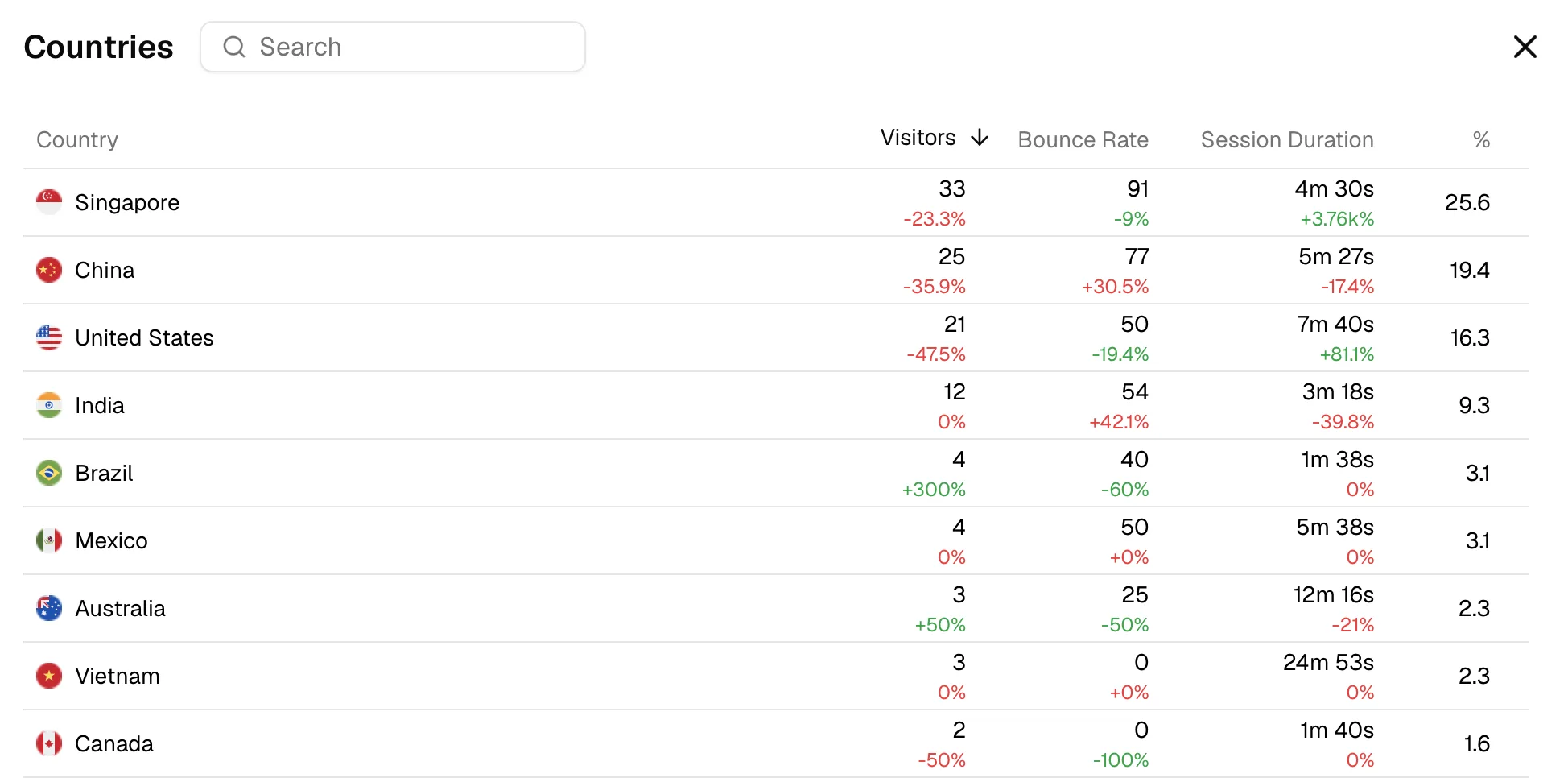
CSV export is on the roadmap.
Finding the right shortcut
Press ? anywhere on the dashboard for a cheat sheet of every keyboard shortcut, including date presets and Compare.
Why Custom Range can't compare
Statable can compare windows of equal length, but won't guess what "previous" means for an irregular range like 5 Apr → 17 Apr. Pick a preset period, or two custom ranges of the same length, to get a comparison.
Ready to take control of your web analytics? Try Statable free for 30 days. No credit card required, full feature access, built for GDPR. Start your free trial or view a live demo.