Statable WCAG Checker
Official browser extension for Chrome, Edge, and Firefox that checks the page you are viewing against the Web Content Accessibility Guidelines and lists what it found. It reports a verdict and every failing element, and can outline those elements on the page. The panel opens as a side panel on Chrome and Edge, and as a sidebar on Firefox.
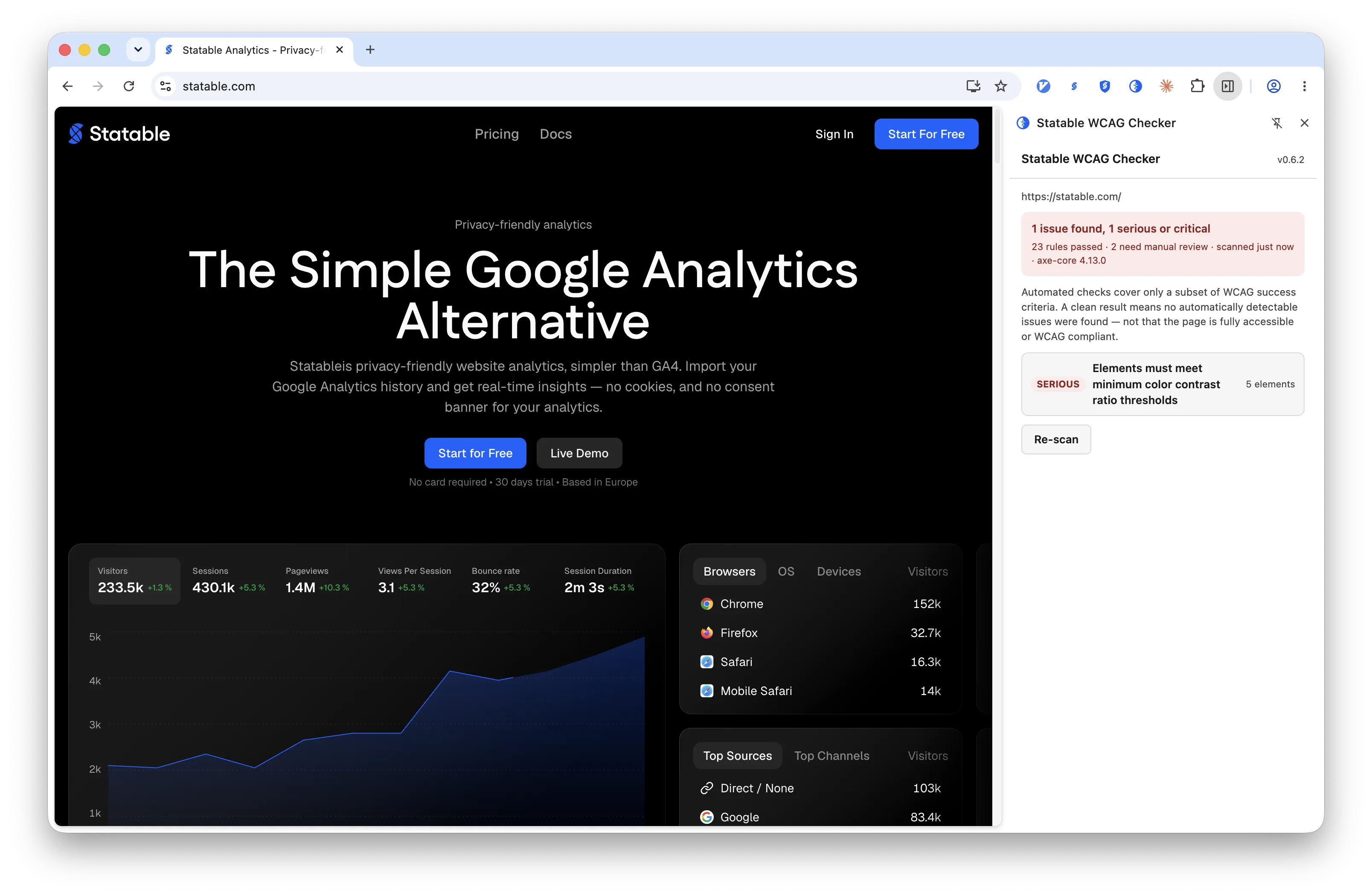
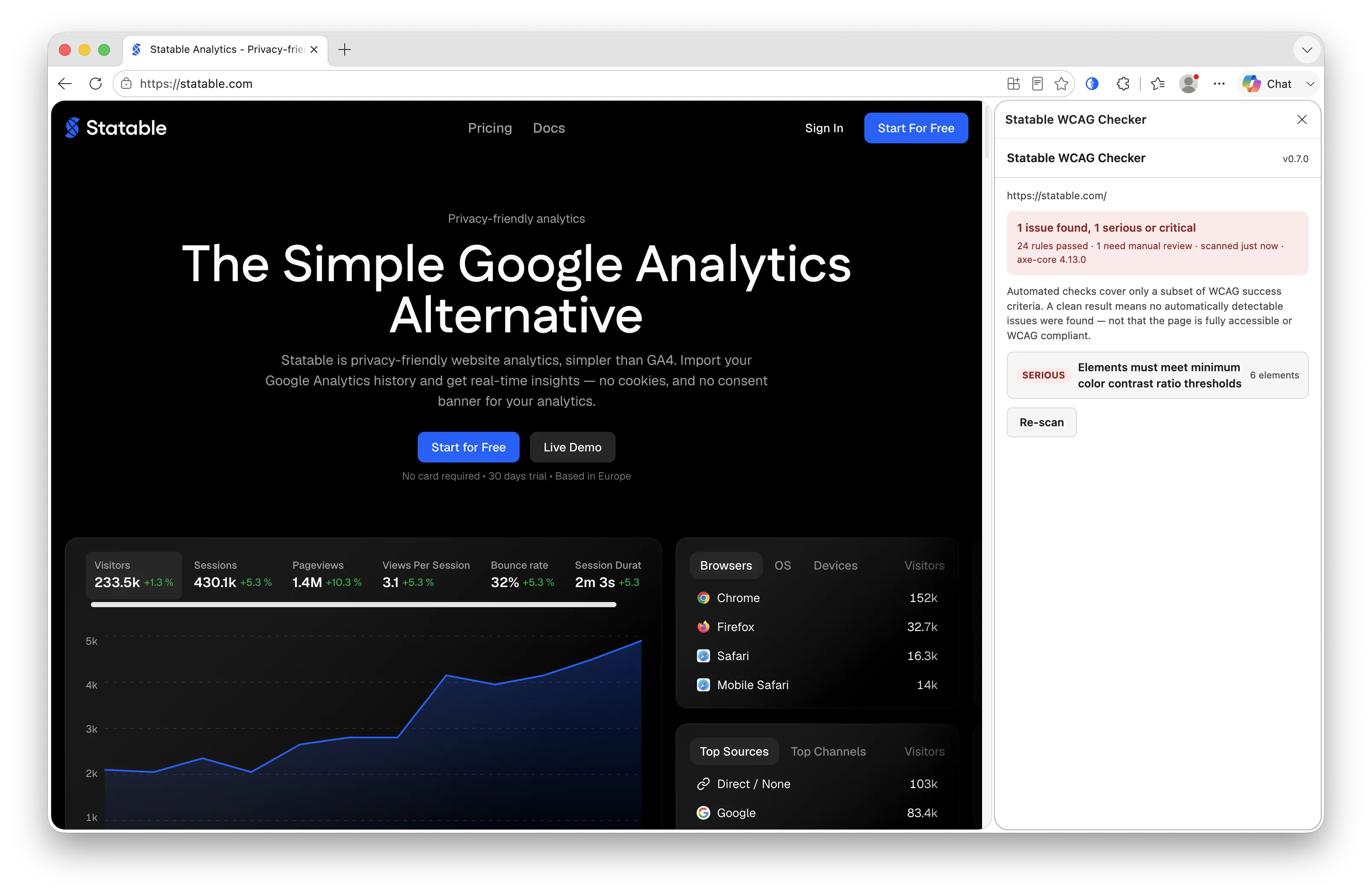
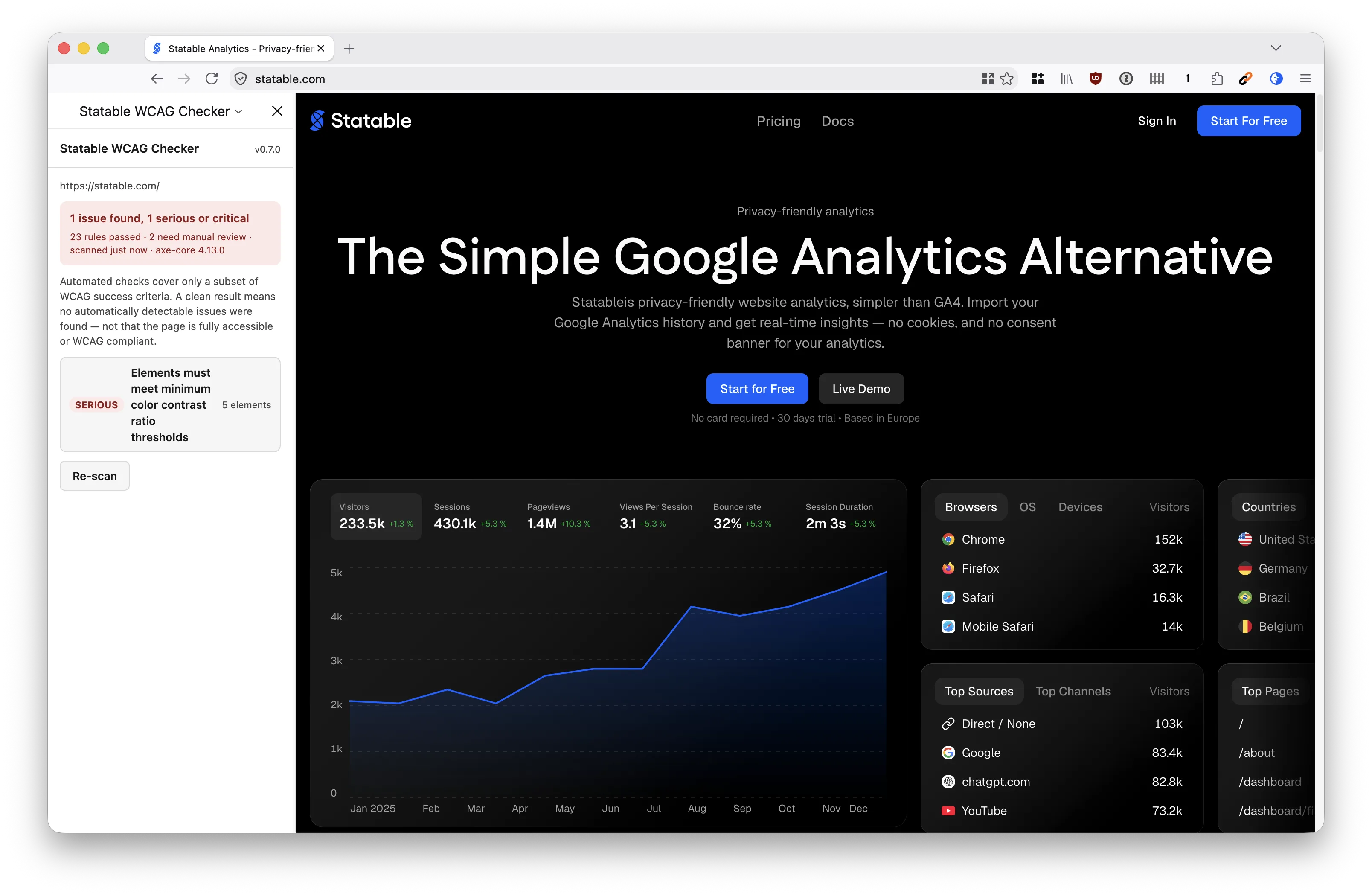
Built for anyone who has to answer "is this page accessible" without opening DevTools: developers fixing a component, content editors checking a new page, and agencies reviewing a client site before handover.
Automated checks, not a compliance verdict
Automated testing reaches only part of WCAG. A clean result means no automatically detectable issues were found, not that the page is accessible or WCAG compliant. Keyboard order, focus management, meaningful alternative text and reading order still need a person. The panel carries this next to every verdict:
Automated checks cover only a subset of WCAG success criteria. A clean result means no automatically detectable issues were found — not that the page is fully accessible or WCAG compliant.
Install
Install from the Chrome Web Store, Edge Add-ons, or Firefox Add-ons. Chrome 116 or newer, Edge 116 or newer, Firefox 140 or newer. Other Chromium browsers can use the Chrome build.
Once installed, pin the extension and click its icon to open the panel.
How a scan runs
Opening the panel is the consent, so there is no Scan button. While the panel is open it follows the active tab of that window and scans on its own once the page has finished loading, either because the page was never scanned or because the last result belongs to a different address.
Two details keep that from firing too eagerly. Navigation events arrive in bursts, so the panel waits out a short pause before acting on them. A page that never reports itself complete is given ten seconds, then scanned anyway, which is what makes sites with a frame that never settles work at all.
A scan that fails does not retry by itself, because on a page where injection always fails that would loop forever. The panel shows what went wrong and offers Retry. After a successful scan the same control reads Re-scan, for checking your fix without reloading.
Nothing runs on the page until a scan starts: there are no content scripts, and the checking engine is injected into the tab only for the duration of the run.
What it checks
The engine is axe-core, the open-source rule set from Deque that also powers the accessibility audit in Lighthouse. Statable runs it restricted to WCAG rule tags, so every finding maps to a numbered success criterion rather than to a general best practice:
- WCAG 2.0 level A and AA
- WCAG 2.1 level A and AA
- WCAG 2.2 level A and AA
Best-practice rules that axe ships but that no success criterion requires are deliberately left out, so a finding in the list is always something a standard asks for.
Frames are part of the page, so they are checked too. When a frame takes too long the scan falls back to the main document, and the <iframe> elements themselves stay in scope: a frame missing an accessible name is a fault in the page you are looking at, not in the frame's contents.
Reading the report
The panel opens with a verdict, then the issues behind it.
| Verdict | When you see it |
|---|---|
| Red | At least one issue rated serious or critical |
| Amber | Issues found, all of them minor or moderate |
| Green | No automatically detectable issues |
The headline states the count plainly, for example "4 issues found, 4 serious or critical". Below it the list is sorted worst first: critical, serious, moderate, minor.
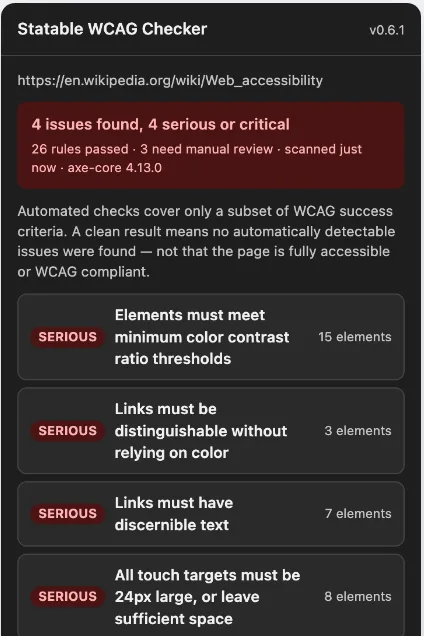
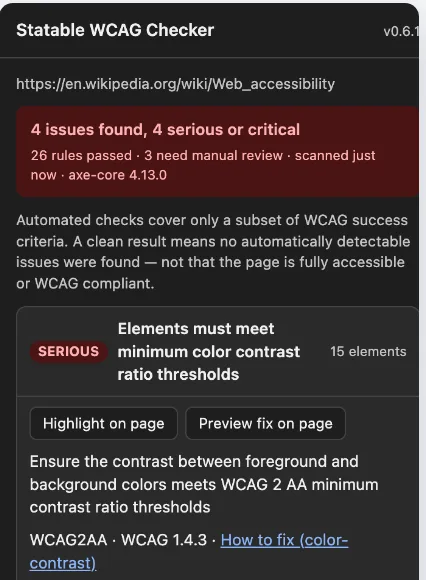
Each entry carries the rule that failed and a plain description of it, the WCAG criteria it maps to, a "how to fix" link to Deque's guidance, and the failing elements with the selector that locates each one and a short excerpt of its markup.
Long lists are capped: at most 25 elements are kept for any one rule, and each excerpt is trimmed to 300 characters. The count still reflects everything found.
Working on the page
Two controls sit on each finding and act only when you press them.
Highlight on page outlines the elements that failed that rule and scrolls the first one into view, which is usually faster than reading a selector. One rule is highlighted at a time, and Remove highlight clears it.
Preview fix on page appears on contrast failures only. It repaints the failing text in the nearest colour that would pass, so you can see the result before changing anything in your own code. Undo fix preview puts it back.
Both are visual and local to your browser. Nothing is saved to the site or submitted to it, and reloading the page clears either one.
Privacy
The extension reads the page to check it, and nothing else happens to what it reads:
- Everything is local. The extension makes no network requests of its own. Nothing it reads leaves your device.
- Nothing is stored. No account, no history, and no extension storage at all. Close the tab and the report is gone.
- No analytics. The extension contains no telemetry and does not use the Statable analytics service.
- Permissions are the minimum the job needs: script injection, and
httpandhttpspages, plus the side panel on Chrome and Edge. The Firefox build asks for one fewer, because its sidebar needs no permission of its own.
The full statement is on the extension privacy policy.
Limits
- Automated coverage only. Only part of WCAG can be tested automatically at all. The rest needs review by a person.
- One page at a time. The checker audits the tab in front of you. It does not crawl a site or produce a report across pages.
- A report describes one state. Content behind a login, inside a modal, or revealed by interaction is only checked once it is on the page. Re-scan after opening it.
- Browser pages cannot be checked. On
chrome://,about:and similar addresses the panel says there is no web page to scan, because no extension is allowed to read them.
Ready to take control of your web analytics? Try Statable free for 30 days. No credit card required, full feature access, built for GDPR. Start your free trial or view a live demo.