Goals
A goal is a specific outcome you want to measure: a signup, checkout, paid upgrade, or a reader reaching the bottom of an article. Statable counts every completion and shows a conversion rate against visitors, reported per goal under Custom Analytics.
Three goal types
1. Pageview goal
Fires when a visitor loads a URL matching a path you specify. Three operators:
- Equal: exact path match.
/thank-youmatches/thank-youand nothing else. - Begins With: prefix match.
/checkout/matches/checkout/cart,/checkout/payment,/checkout/complete. - Contains: substring match.
successmatches/order/success,/signup-success,/payment-success-page.
Pageview goals need no code changes, just the path:
Use them for confirmation pages, milestone screens, and any URL that already exists as a side-effect of the action.
2. Custom event goal
Fires every time a custom event with the matching name is recorded. The event must already be firing on your site. Statable doesn't auto-create events from goal definitions.
Custom event goals fit when the action has no dedicated URL: modal submissions, in-app interactions, anything fired with window.statable.t().
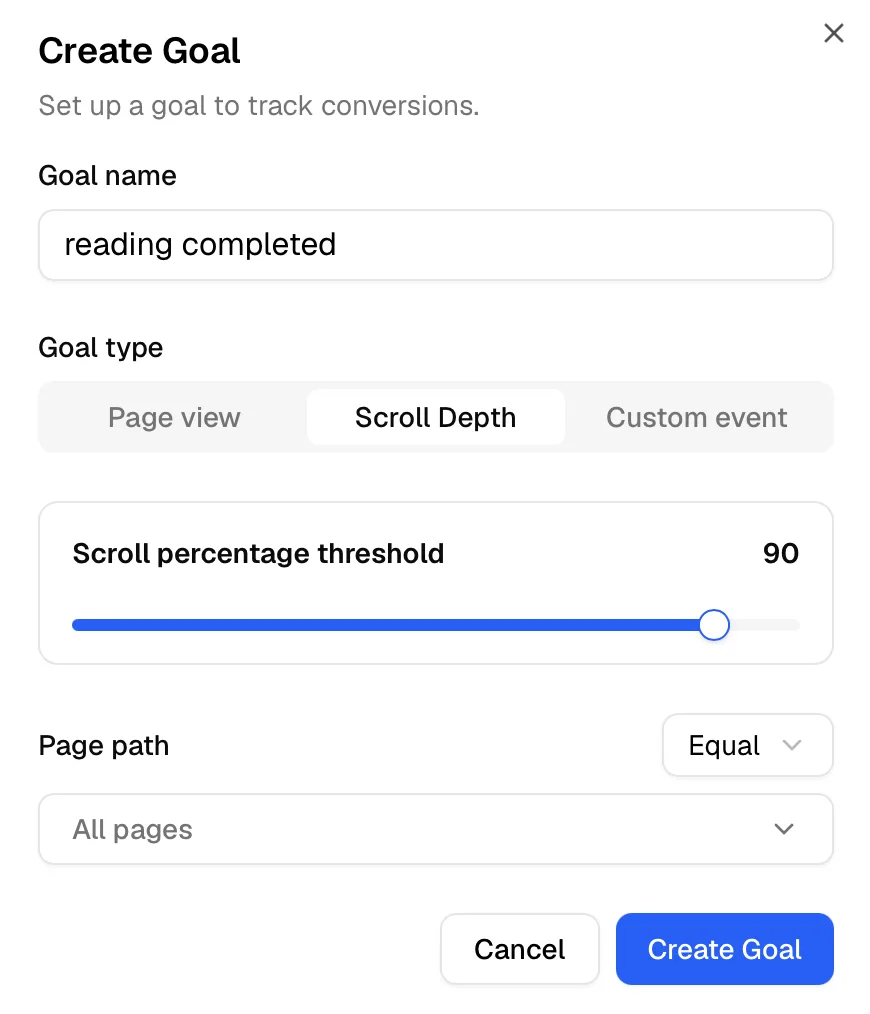
3. Scroll depth goal
Fires when a visitor scrolls past a percentage threshold on any page in the session. Threshold is a 0–100% slider:
Scroll goals work well for content sites. A 75% scroll on a long-form article is a much stronger engagement signal than a pageview alone.
Creating a goal
- Go to Site settings → Goals.
- Click Create Goal.
- Pick a type: Pageview, Custom Event, or Scroll Depth.
- Fill in the type-specific fields (path + operator, event name, or threshold).
- Optionally rename the goal. Leaving the name blank auto-generates one from your inputs (
Pageview equal /thank-you,Event Sign Up,Scroll 75%). - Save.
A goal reports on the past as well as the future. It is a saved condition, not a counter: Statable applies it to events already in storage when you run a report, so a goal created today shows conversions from last month. Nothing is backfilled because nothing needs to be.
What a goal cannot do is invent the underlying record. A custom event goal only sees events your site actually fired, and a scroll depth goal only sees sessions where scroll depth was measured. Fire the event first; add the goal whenever you have a question about it.
Editing and deleting
From Site settings → Goals, every goal has Edit and Delete:
- Edit changes the condition. Because the condition is applied when you run a report, the history you see changes with it: the goal now reports on whatever the new criteria match, over the whole period.
- Delete removes the goal. No soft-delete, and no way to restore the definition. The events underneath are untouched, so recreating the same goal brings the same numbers back. A goal that a funnel step still uses can't be deleted: the message names the funnel, so remove the step there first.
If criteria change significantly (e.g. switching from Equal /thank-you to Begins With /checkout/), create a new goal instead of editing the old one. Editing rewrites the whole reported history under the new condition, which is rarely what you want when the two definitions measure different things.
Naming conventions
Auto-generated names are descriptive but verbose. For dashboards you check daily, override them with short, action-oriented names:
| Auto-generated | Better |
|---|---|
Pageview equal /thank-you | Newsletter Signup |
Event Sign Up | Account Created |
Scroll 75% | Article Read |
Pageview begin /checkout/ | Checkout Started |
A consistent style (past tense, capitalized, no jargon) pays off when you have a dozen goals and need to scan the report quickly.
Next: read the data
Once a goal is firing, head to Conversion tracking to see how it surfaces in the dashboard, how to filter sessions by completion, and how to compare conversion rates across channels.
Ready to take control of your web analytics? Try Statable free for 30 days. No credit card required, full feature access, built for GDPR. Start your free trial or view a live demo.